
Trading Paints Not Working? Try this
Have more questions? Ask us in the DiscordTrading paints not updating? It’s usually a small thing but here are some steps you can take to get it working again.
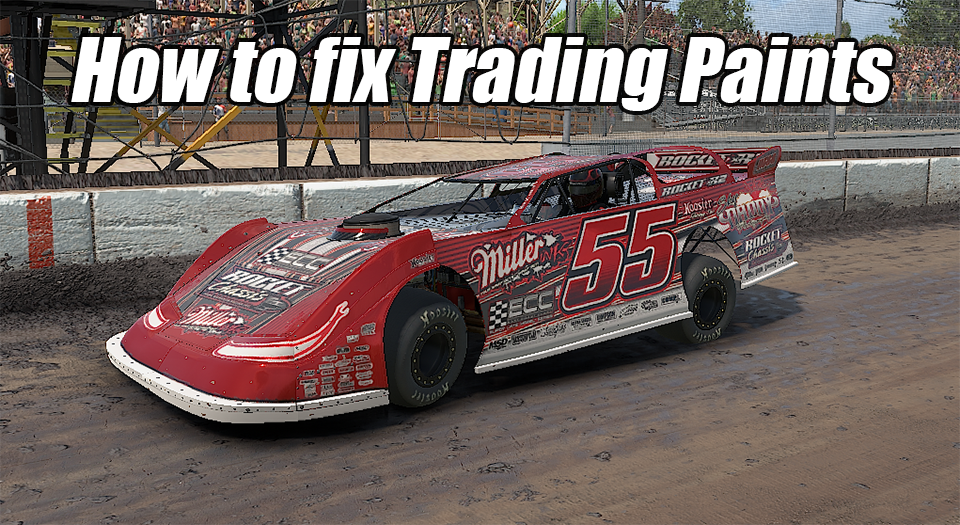
Usually the problem isn’t Trading Paints itself, but different settings in iRacing and Windows. Let’s dig into the fixes for trading paints not loading custom liveries.
1. Make Sure the Downloader Is Actually Running
This is the #1 culprit. The Trading Paints Downloader must be open and running in the background the entire time you’re in iRacing — it doesn’t work passively on its own. Check your Windows system tray (bottom-right of your taskbar) for the Trading Paints icon.
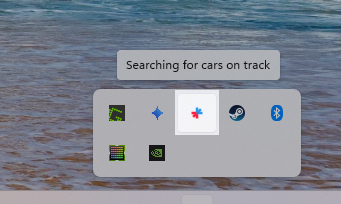
If it’s not there, launch it manually. Better yet, enable “Start on System Startup” in the Downloader settings so you never forget. help.tradingpaints
2. Check Your Downloader Settings
Open the Downloader and click into Advanced Options. A few key checkboxes to verify: help.tradingpaints
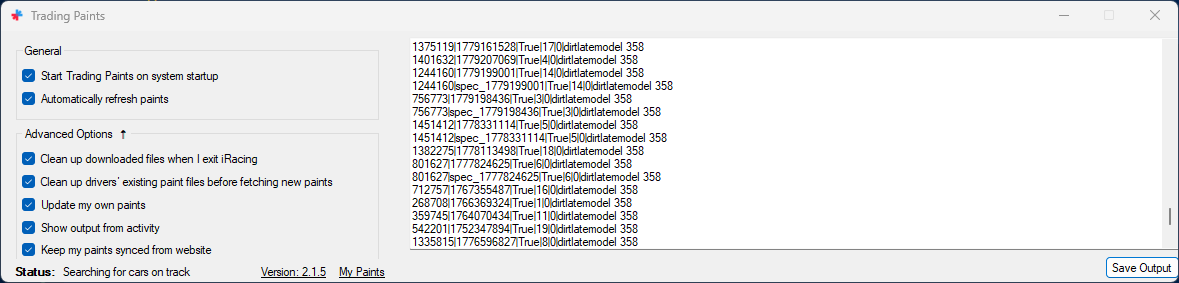
- “Update My Own Paints” — must be checked or Downloader will skip downloading your own paint
- “Keep My Paints Synced from Website” — enables the iRacing UI to reflect your selected livery
- “Clean Up on Exit” — keeps your paints folder tidy and avoids stale paint files conflicting with new ones
3. Force a Paint Refresh In-Session
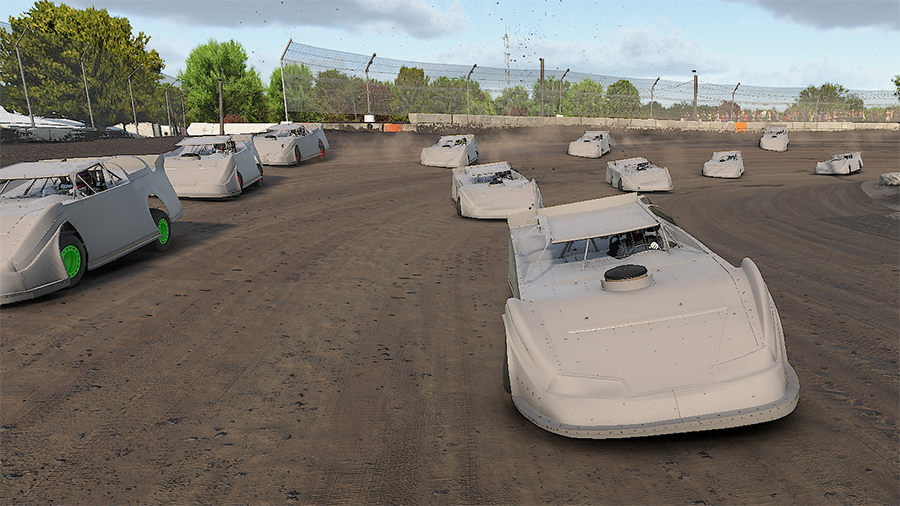
If you’re already in a session and paints still look wrong, iRacing has a built-in keyboard shortcut to force a repaint of all cars. It will briefly flash the cars white, then reload all liveries fresh from your local paint folder. You can also hit the Re-Download Paints button inside the Trading Paints app itself to force a re-download.
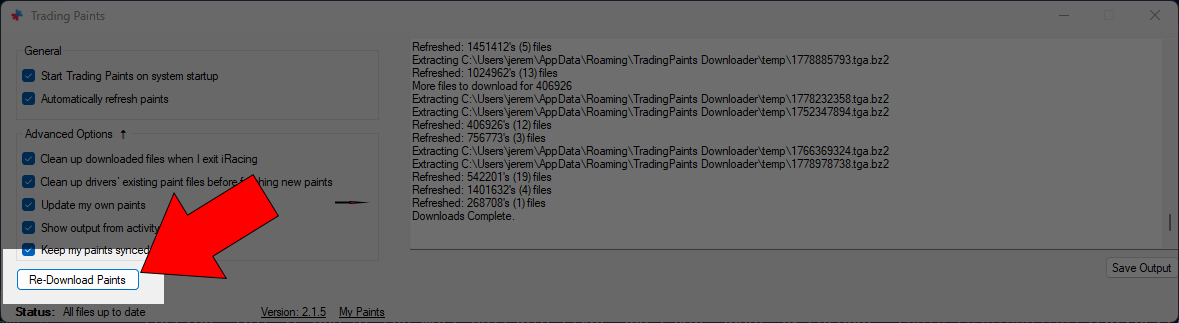
4. Nuke the Paint Folder
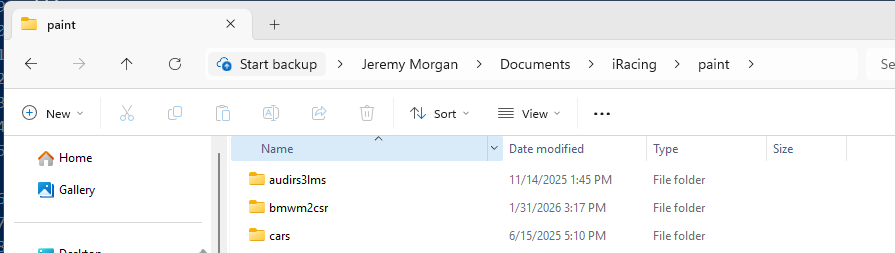
If paints are corrupted or stale files are causing conflicts, delete the Documents/iRacing/paint folder entirely. Don’t worry — Trading Paints will rebuild it automatically when you enter your next session. This is one of the most reliable fixes and takes about 30 seconds.
5. Trigger an iRacing UI Update
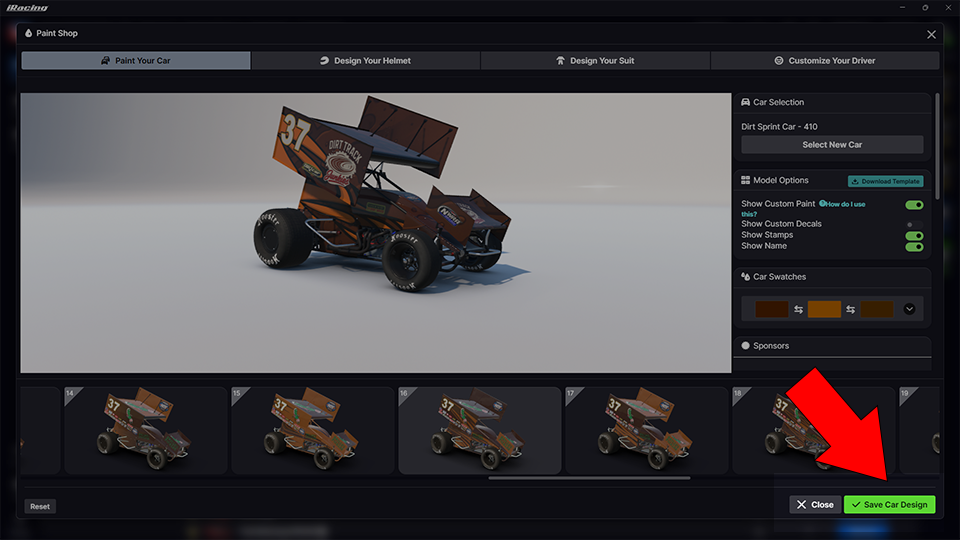
The iRacing UI only refreshes livery previews when a paint is actively saved in the paint shop. If your car still shows the wrong skin in the garage UI, open the car in the iRacing Paint Shop, make a trivial change (swap a sponsor, tweak a wheel material, or change the number font), and hit Save. This kicks the UI into refreshing the displayed paint. reddit
6. Check Firewall and Antivirus
Your security software may be silently blocking Trading Paints from writing to your iRacing directory or phoning home for updates. Add the Trading Paints Downloader as an exception in both your Windows Firewall and any third-party antivirus (Malwarebytes, Bitdefender, etc.).
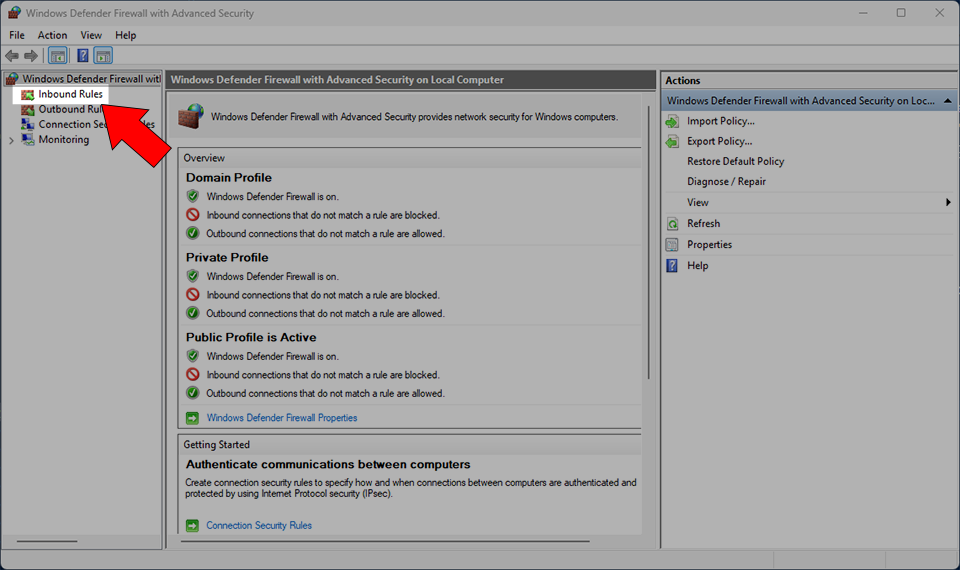
Here is how to do it with Windows Firewall:
Go to your search bar and search for “Windows Defender Firewall”
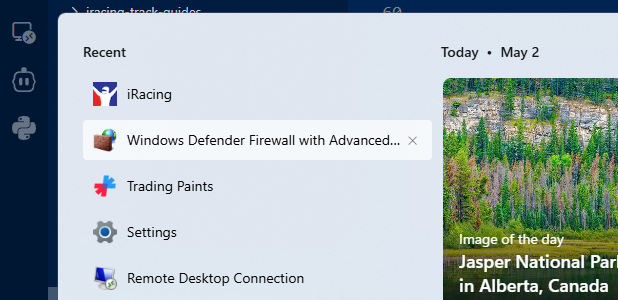
Select “Inbound Rules”:
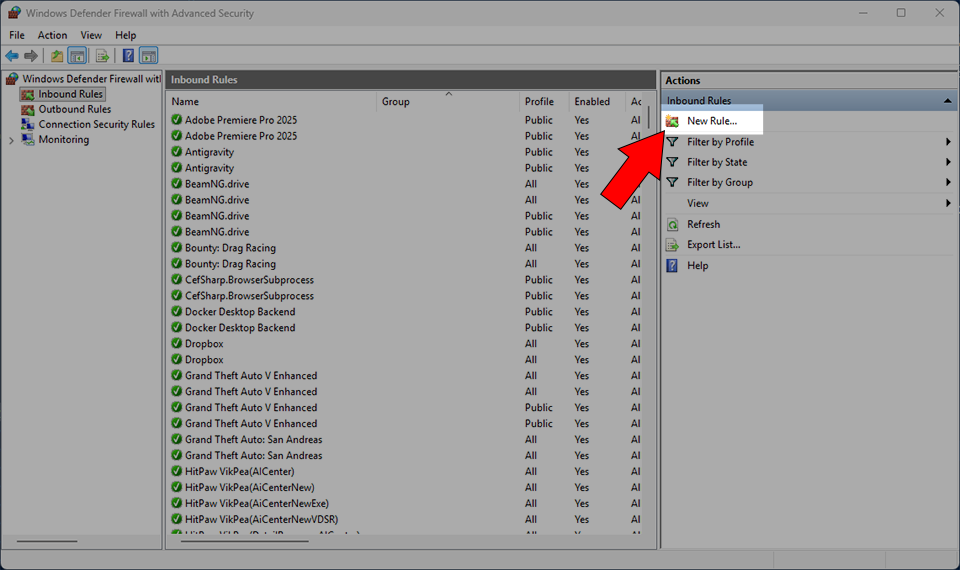
Click on “New Rule”:
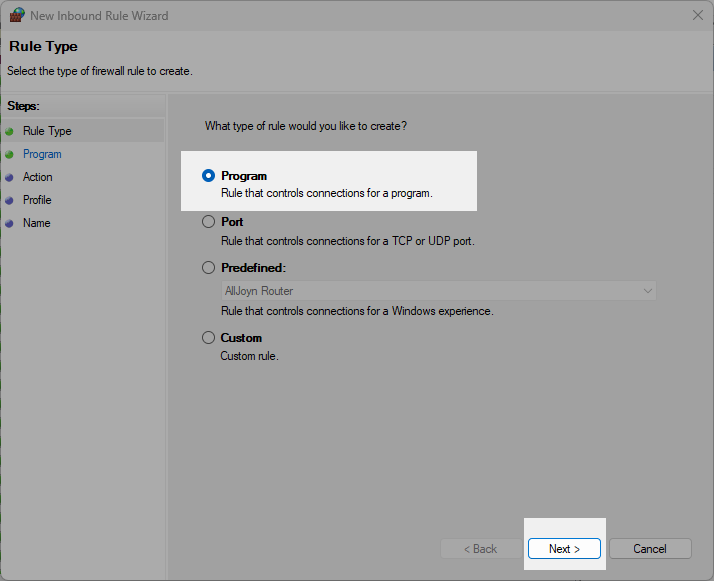
Select “Program” and click next
Choose “This program path:” This is where we put the path to trading paints downloader.
Paste in the path to your Trading paints program. If you installed it in the default location it should be:
"C:\Program Files (x86)\Rhinode LLC\Trading Paints\Trading Paints.exe"
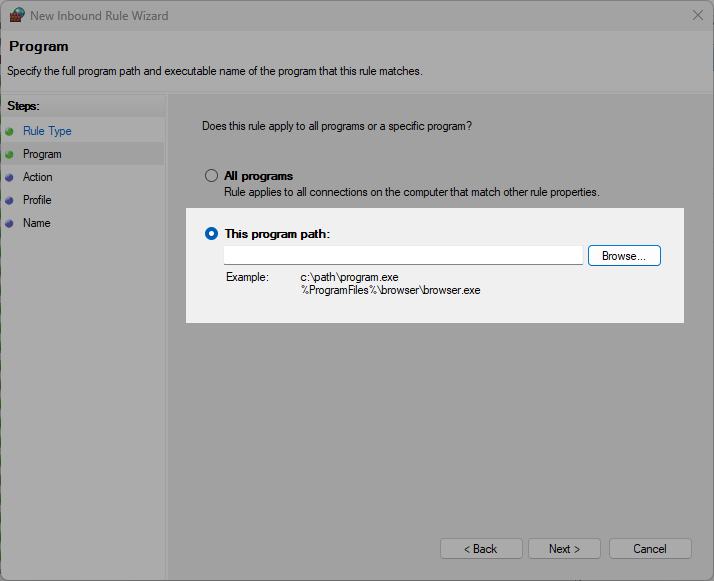
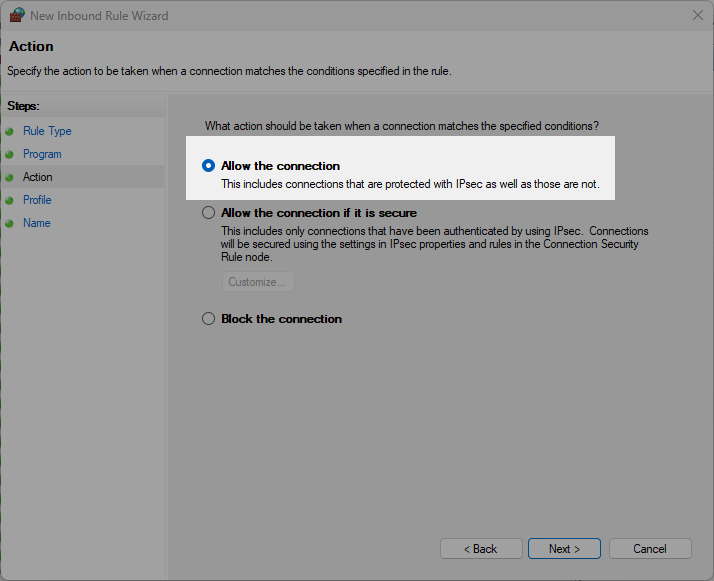
If you installed it somewhere else point it there. Click next. In the next screen, select allow the connection
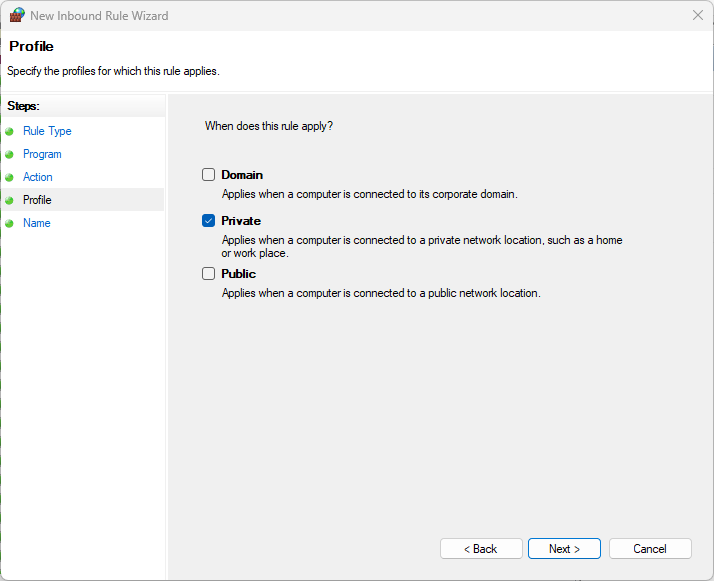
Then select Private only. (Unless you game from a coffee shop or on your work connection)
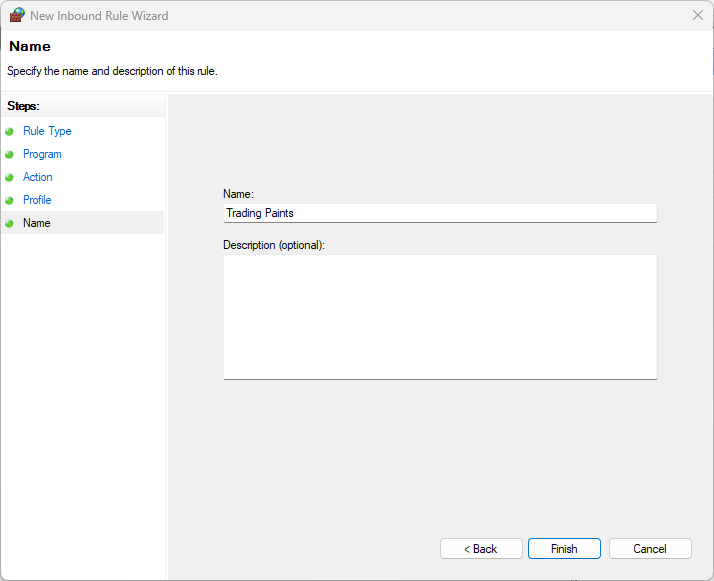
 Enter a name for the rule (can be anything ) and click finish.
7. Windows 11 Users — Known Bug
If you’re on Windows 11 and recently received update KB5066835, be aware that this update is known to break the Trading Paints Downloader for some users, specifically affecting paint refreshes and the Paint Builder.
What KB5066835 broke
The Windows 11 October 2025 cumulative update (KB5066835) introduced a regression in HTTP.sys, the low-level Windows networking component that handles HTTP/HTTPS connections. This broke localhost (127.0.0.1) functionality, which Trading Paints Downloader relies on to communicate between your browser and the Downloader app running on your PC.
Separately, Google Chrome 142 (released around the same time) added a new Local Network Access permission prompt that affects the same communication pathway. windowscentral
The Fixes (Pick One)
Option 1 — Allow Local Network Access in your browser (easiest) This resolves the Chrome/Edge permission issue and is the fix most Trading Paints users actually need:
- While on tradingpaints.com, click the Settings icon (🔒) to the left of the address bar
- Choose Site settings
- Scroll to Local Network and set it to Allow
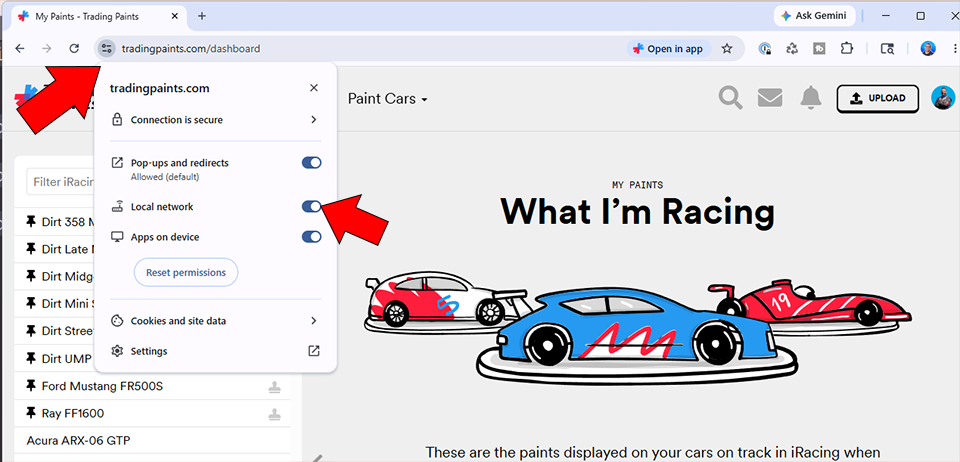
- Repeat the same steps when inside paintbuilder.tradingpaints.com
Option 2 — Apply Microsoft’s Known Issue Rollback (recommended for the HTTP.sys bug) Microsoft has issued a Known Issue Rollback (KIR) patch for the HTTP.sys regression:
- Open Settings → Windows Update
- Click Check for updates
- Install any pending updates and restart
Option 3 — Registry fix via PowerShell (manual, advanced) This disables HTTP/2 for local connections, which resolves the loopback failure:
- Open PowerShell as Administrator
- Run these two commands:
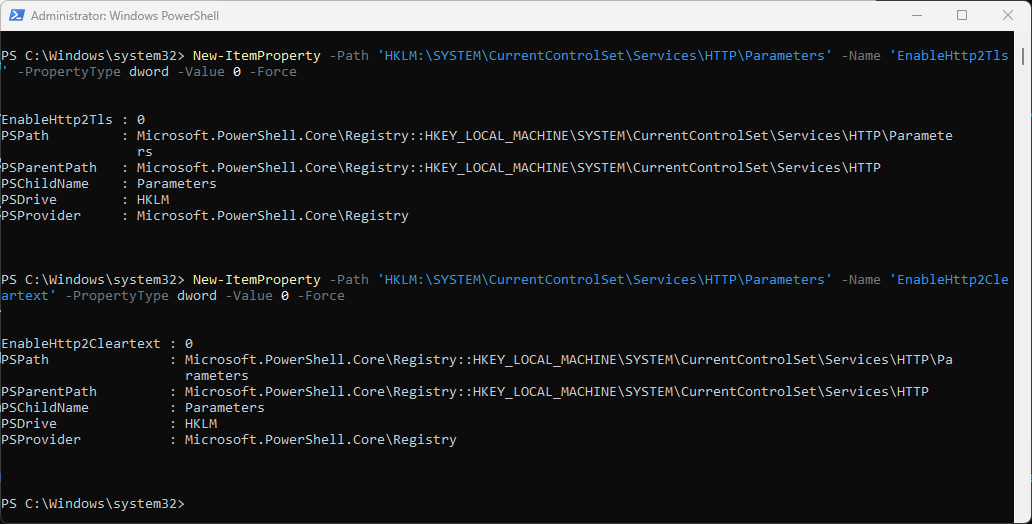
New-ItemProperty -Path 'HKLM:\SYSTEM\CurrentControlSet\Services\HTTP\Parameters' -Name 'EnableHttp2Tls' -PropertyType dword -Value 0 -Force
New-ItemProperty -Path 'HKLM:\SYSTEM\CurrentControlSet\Services\HTTP\Parameters' -Name 'EnableHttp2Cleartext' -PropertyType dword -Value 0 -Force
You should see a screen that looks like this:
Option 4 — Uninstall KB5066835 entirely If none of the above works, removing the update itself restores full localhost functionality.
Go to Settings → Windows Update → Update History → Uninstall Updates and remove KB5066835 (and KB5065789 if also installed). Note that Windows may try to reinstall it automatically. learn.microsoft
Important note: The Local Network Access browser permission (Option 1) is the fix most iRacers specifically need. The Registry and KIR fixes are more relevant if you’re also experiencing broader localhost failures outside of Trading Paints. help.tradingpaints
8. Custom Number Paints (Pro Members)
If you’re a Trading Paints Pro subscriber using a Custom Number paint, you must have “Hide numbers…” enabled in your iRacing graphics settings. If iRacing isn’t configured to use a custom number, it will override your livery with a default one, making it look like the paint isn’t loading at all.
Here’s exactly how to enable Hide Car Numbers in iRacing so your Trading Paints Pro custom number paint displays correctly.
Step-by-Step: Enable “Hide Car Numbers”
You must be loaded into a session first — this setting is only accessible from inside iRacing, not from the launcher or UI.
- Load into any session — a Test Drive session works perfectly for this and doesn’t cost you anything
- Open the Options menu — click the iRacing menu (top-left of screen) or press Escape
- Click the “Graphics” tab at the top of the Options panel
- Scroll to the bottom-right of the Graphics options — look for the checkbox labeled “Hide Car Numbers”
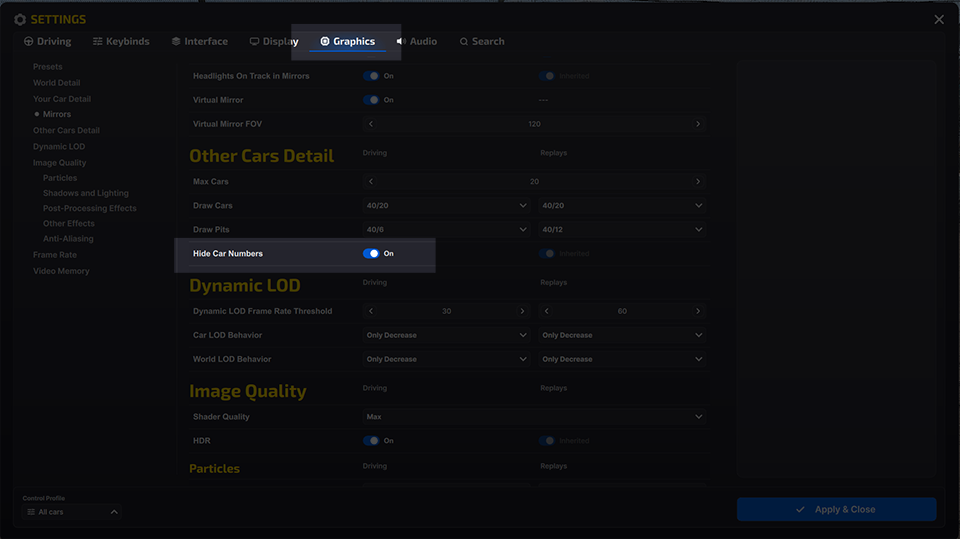
- Check the box to enable it
- Click “Done” to save the setting
- Press Ctrl + R to re-render all cars — your custom number paint will now appear on top
A Few Things to Know
Once enabled, this setting is sticky — it saves and persists across all future sessions, so you only need to do this once. However, be aware that if you’re racing with others who do not have “Hide Car Numbers” checked, they will see your car without a custom number entirely — iRacing will show a blank where the number should be.
To avoid this, Trading Paints Pro users should ideally upload two paint files to their Trading Paints profile:
- A no-number version of the livery under the Sim-Stamped Number tab (so drivers without Hide Car Numbers see a clean car)
- The custom number version under the Custom Number tab (displayed for drivers who have the setting enabled)
9. Still Broken? Try irSidekick
If none of the above works, consider switching to irSidekick as your livery client. It’s a well-regarded alternative to the Trading Paints Downloader, fully compatible with Trading Paints liveries, and is widely reported to be more stable and bug-free for users who’ve had persistent issues with the official client.
10. Last Resort: Full Reinstall
Close Trading Paints completely via the system tray, uninstall it, redownload the latest installer from tradingpaints.com, and reinstall fresh. If you recently reinstalled Windows or iRacing, note that your User ID may not yet be cached — this resolves itself automatically after joining one or two official iRacing sessions.